Need help?
Write to us and we will reply as soon as we can, usually within a few days.
Installing
Chrome, Edge, Brave, Opera and Vivaldi
- Open the Easy AACcess page in the Chrome Web Store and click Add to Chrome. Edge, Brave, Opera and Vivaldi can install from the same page.
- In Edge, if a bar at the top asks, click Allow extensions from other stores first.
- To keep the settings button visible, click the puzzle-piece icon in the toolbar and click the pin next to Easy AACcess.
- Open youtube.com. The board appears on the left of the page.
Safari on Mac
- Install Easy AACcess from the Mac App Store and open the app once.
- Click Quit and Open Safari Settings… in the app, or open Safari → Settings → Extensions, and tick Easy AACcess.
- Open youtube.com. When Safari asks, choose Always Allow on This Website.
Safari on iPad
- Install Easy AACcess from the App Store.
- Open the Settings app, go to Apps → Safari → Extensions and turn on Easy AACcess.
- Open youtube.com in Safari. Tap the page menu in the address bar, choose Easy AACcess and allow it on youtube.com (Always Allow).
The extension works in Safari only. It does not run inside the YouTube app or inside the built-in browsers of other apps.
Which devices are supported?
Computers (Windows, Mac, ChromeOS, Linux) and iPad. Phones are not supported.
Using the board
On the home page and search results
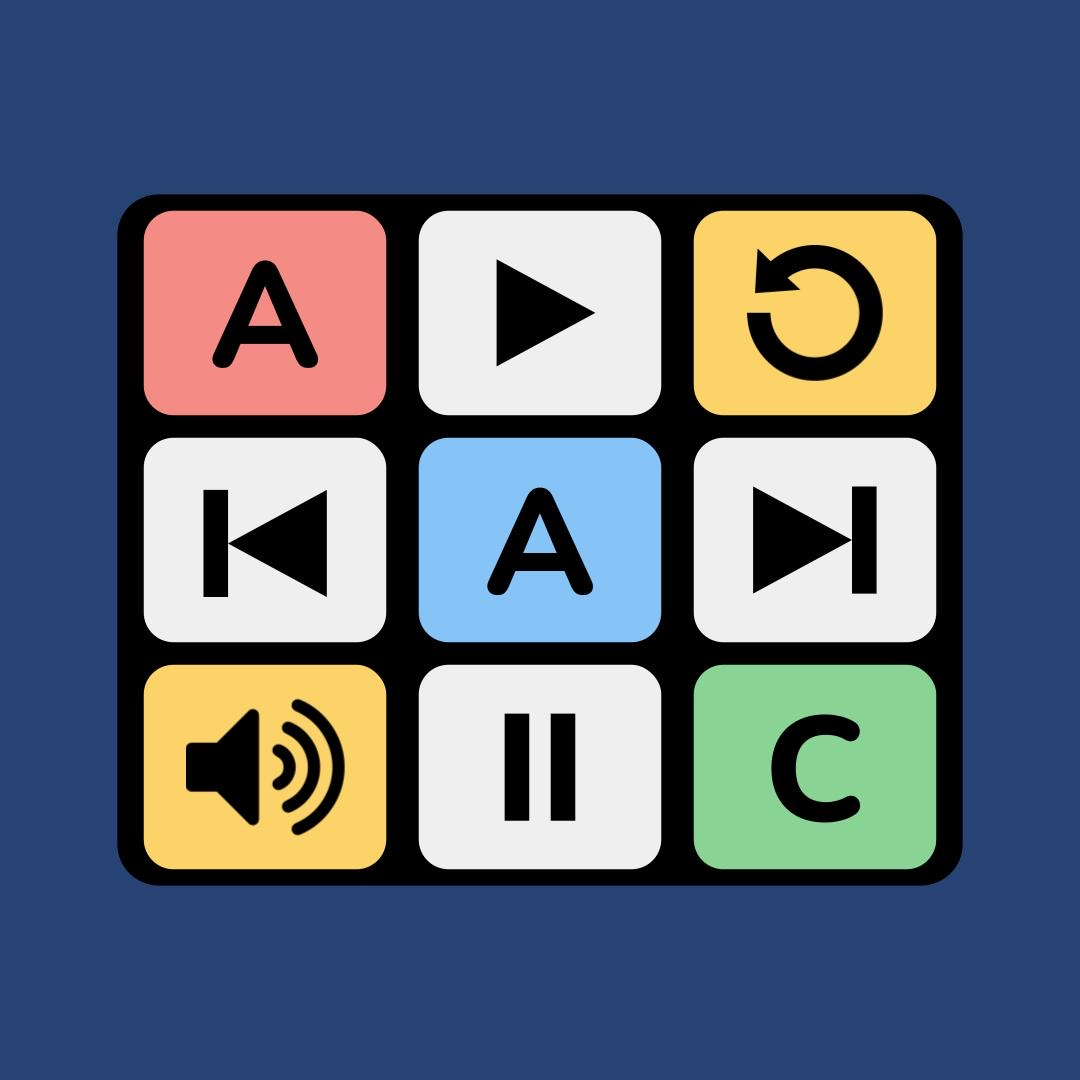
| Arrow buttons | Move the yellow highlight between the search box and the videos. Up and down jump a whole row. |
|---|---|
| SELECT | Opens the highlighted video, or opens the search keyboard when the search box is highlighted. |
| BACK | Goes back to the previous page. |
While watching a video
| PLAY / PAUSE | Start or stop the video. |
|---|---|
| NEXT | Plays the next video from your last search. It does not use YouTube's recommendations. |
| BACK | Goes back to the previous page. |
| LOUDER / SOFTER | Change the video's volume. |
| CAPTIONS | Turns subtitles on or off, or says "no captions available" if the video has none. |
| FULL SCREEN | Makes the video fill the screen. Only the EXIT FULL SCREEN button stays visible. |
Control bar and moving the board
| HOME | Goes to the YouTube home page. |
|---|---|
| MOVE | Moves the board to the other side of the screen. |
| SCAN / STOP | Starts or stops scanning. |
| HIDE / SHOW | Hides the big buttons to see more of the page, and shows them again. |
| DRAG | Hold and drag the bar at the top of the board to place it anywhere. It snaps to the nearest corner. |
Searching with the keyboard
Select the search box to open the large keyboard. Type with the letter keys, tap a word suggestion to finish a word, and press SEARCH. The keyboard can be set to QWERTY or ABC order, or turned off, in the settings.
Changing the settings
Click the Easy AACcess icon in the browser toolbar (on iPad, the page menu in Safari's address bar). You can change the scan speed, spoken scanning, board size and layout, and the keyboard. Changes apply straight away and are remembered.
Switches and keys
How does scanning work?
Press SCAN. After a short pause, a yellow highlight moves from one button (or video) to the next at the speed set in the settings. When the right item is highlighted, press Space, Enter or click anywhere to choose it. Press STOP to end scanning.
Can I use an accessibility switch?
Yes. Easy AACcess does not need special hardware: any switch interface that sends a Space or Enter key press, or a mouse click, works. Most USB and Bluetooth switch interfaces can be set to one of these in their own settings or manual.
On iPad, the switch interface must be connected as a keyboard. If Apple's Switch Control is turned on, it may use the switch itself instead of passing it to Safari.
Common problems
The board does not appear
- Refresh the YouTube page. After installing or updating the extension, pages that were already open need to be reloaded.
- Check that the extension is turned on and allowed on youtube.com (see Installing).
- Make sure you are on www.youtube.com in a browser, not in the YouTube app or inside another app's built-in browser.
I opened YouTube from an AAC app and the board is missing
Many AAC apps open websites in their own built-in browser, where extensions cannot run. Set the app's button to open the link in Safari (or your normal browser) instead, or open YouTube in Safari directly.
There is no speech, or the speech starts late
- Check that the device's volume is up and not muted.
- Check that "Speak while scanning" is turned on in the settings (it only affects scanning; buttons always speak).
- A short delay usually means the browser is using an online voice. Installing an offline voice on the device fixes this: Windows: Settings → Time & language → Speech; Mac: System Settings → Accessibility → Spoken Content → System voice; iPad: Settings → Accessibility → Spoken Content → Voices.
Videos do not start by themselves
Some browsers (for example Safari) block videos from starting with sound on their own. Press PLAY, or allow autoplay for youtube.com in the browser's website settings.
NEXT says "search first" or "this video is not from your search"
NEXT plays the next video from your most recent search results. Search for something first with the keyboard, then open a video from the results.
CAPTIONS says "no captions available"
The video has no subtitles. Captions are added by the person who uploaded the video, so not every video has them.
The search keyboard does not open
Check that "Use AAC keyboard for search" is turned on in the settings, then select the search box again.
The colors of the board look different on iPad
This happens when an iPad display setting changes colors, such as Smart Invert, Classic Invert or Color Filters. You can check them in Settings → Accessibility → Display & Text Size.
Reporting a problem
If something does not work, email easyaacess.contact@gmail.com and tell us:
- the device and browser (for example "Windows laptop, Chrome" or "iPad, Safari");
- what you did, what you expected, and what happened instead;
- a screenshot, if you can.
Please do not include health information or other personal details about the person using the extension. We do not need them to help. See our privacy policy for how we handle emails.